
Automate Your Church Event Process with Subsplash Forms and Workflows
 Reed VerdesotoDigital Systems Architect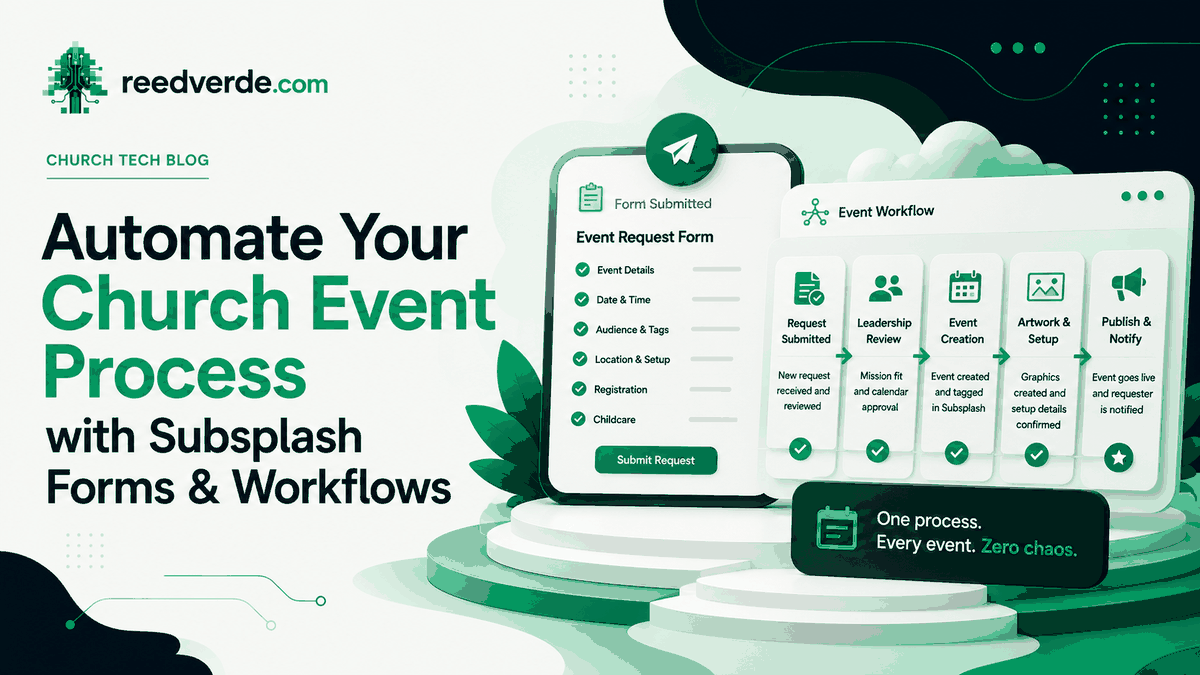
Yesterday I walked through how to plan your entire church calendar 90 days at a time. One annual map, a rolling cycle, every season live a month before it starts. That post was about the information: what is happening, when, and who it is for.
This post is about what you do with that information once you have it. Because knowing what is coming is only half the job. The other half is getting each event from an idea in someone's head to a published, tagged event in your app, the same way every single time, without anything falling through the cracks.
That second half is where most churches break down. And it is exactly what Subsplash Forms and Subsplash Workflows are built to fix.
The problem: your process lives in someone's memory
Here is what event planning looks like at most churches. A ministry leader has an idea. They mention it to the office manager in the hallway. The office manager means to put it on the calendar but gets pulled into three other things. Two weeks later someone asks why the event is not in the app, and now there is a scramble to create it, make the graphic, and promote it with almost no lead time.
Nobody did anything wrong. There was just no system. The process depended on someone remembering to do something, and when everything depends on memory, things get dropped.
The fix is not to try harder or remember better. The fix is to build the process into a tool that runs it for you. You design the path once, and then every event follows the same path automatically. That is what Workflows does.
Where I learned this the hard way
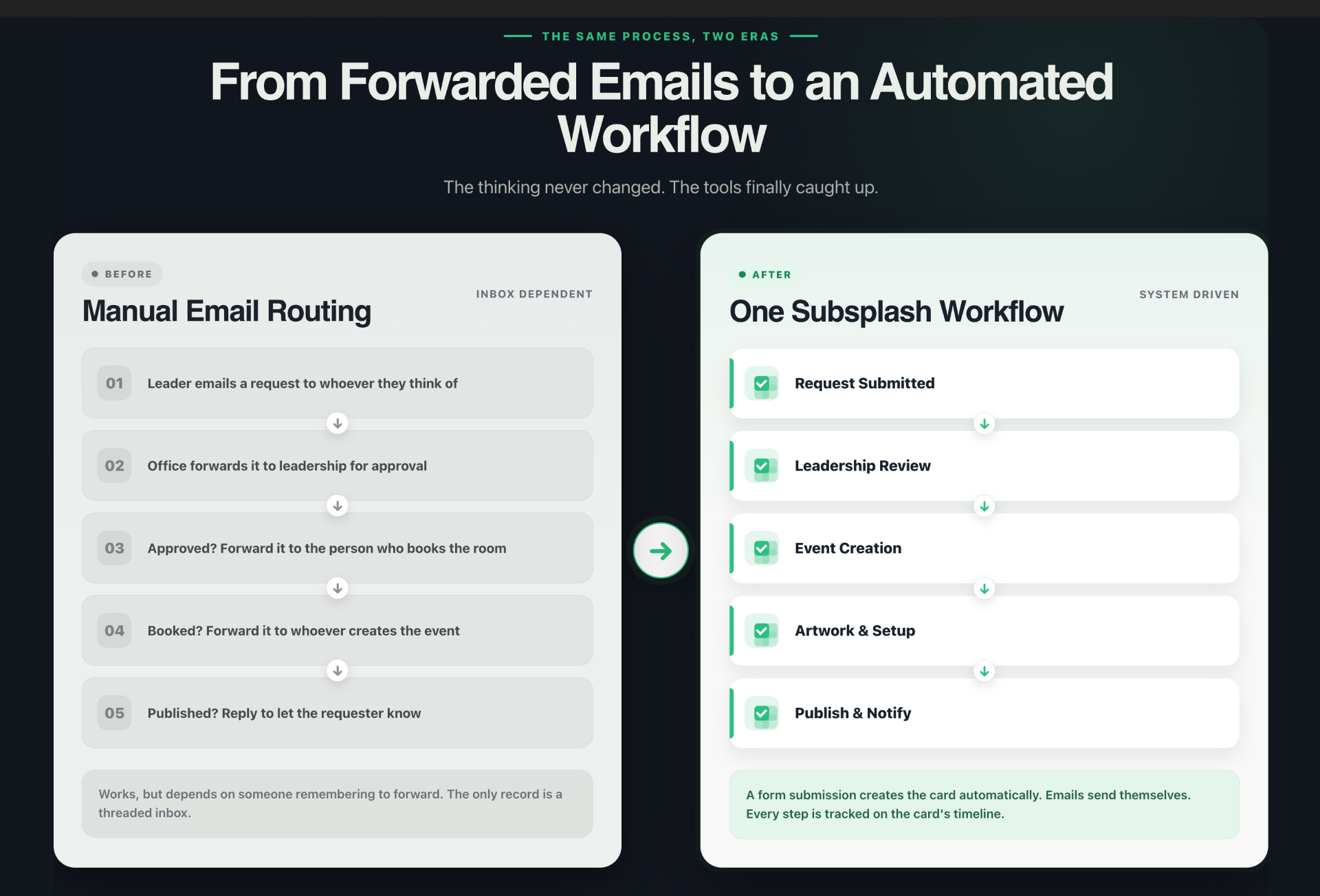
Years ago, before Subsplash had a tool like Workflows, I sat down with a church to solve exactly this problem. We were not picking software. We were figuring out the actual process. Who submits an event? Who approves it for mission fit? Who checks the calendar for conflicts? Who creates it in the system? Who publishes it?
We mapped all of it. We built a single request form so every event started in the same place, and we built a review process with clear approval gates so nothing got published without the right eyes on it. It worked. But the routing was manual. Approvals moved through forwarded emails, one person to the next, and the record of what happened lived in an inbox.
Figuring out that process was the real work. The hard part was never the technology. It was deciding, clearly, what has to happen and in what order.
Later, I took that exact process to another church and built it properly, this time with the actual Subsplash tools. Subsplash Forms for the intake. Subsplash Workflows for the routing. Same process I had designed by hand, now running as an automated system. That is the build I want to show you, because it is the one you can copy today.
Step one: the front door is a Subsplash Form
Every event starts in one place. Not a hallway conversation, not a text message, not an email to whoever the leader happened to think of. One form.
I build this as a Subsplash Form, and it captures everything the church needs to make a decision and create the event later without a second round of questions. The person's name and contact. The event title, the ministry responsible, and a short description including why someone would benefit from it. The date, the start and end time, and the setup and cleanup time. Expected attendance. The rooms or spaces needed. Whether childcare is required. Whether registration is needed. And who the event is for, every audience it serves.
That last field matters more than it looks. Tagging the event to every audience it serves, not just the ministry that runs it, is what makes your app and website fill themselves later. If you read yesterday's post on the 90-day calendar, you know the rule: put the event in front of every audience who would use it, the way a grocery store shelves an item where shoppers actually look for it.
The form also sets expectations up front. A good request form tells the person what happens next: your request will be reviewed by leadership for mission fit and calendar availability, then approved, then published. It even asks them to acknowledge that their request will be reviewed. Now the submitter knows this is a real process, not a favor they are asking.
One form. Every event. No exceptions. That single rule eliminates half the chaos before it starts.
Step two: the process becomes a Workflow board
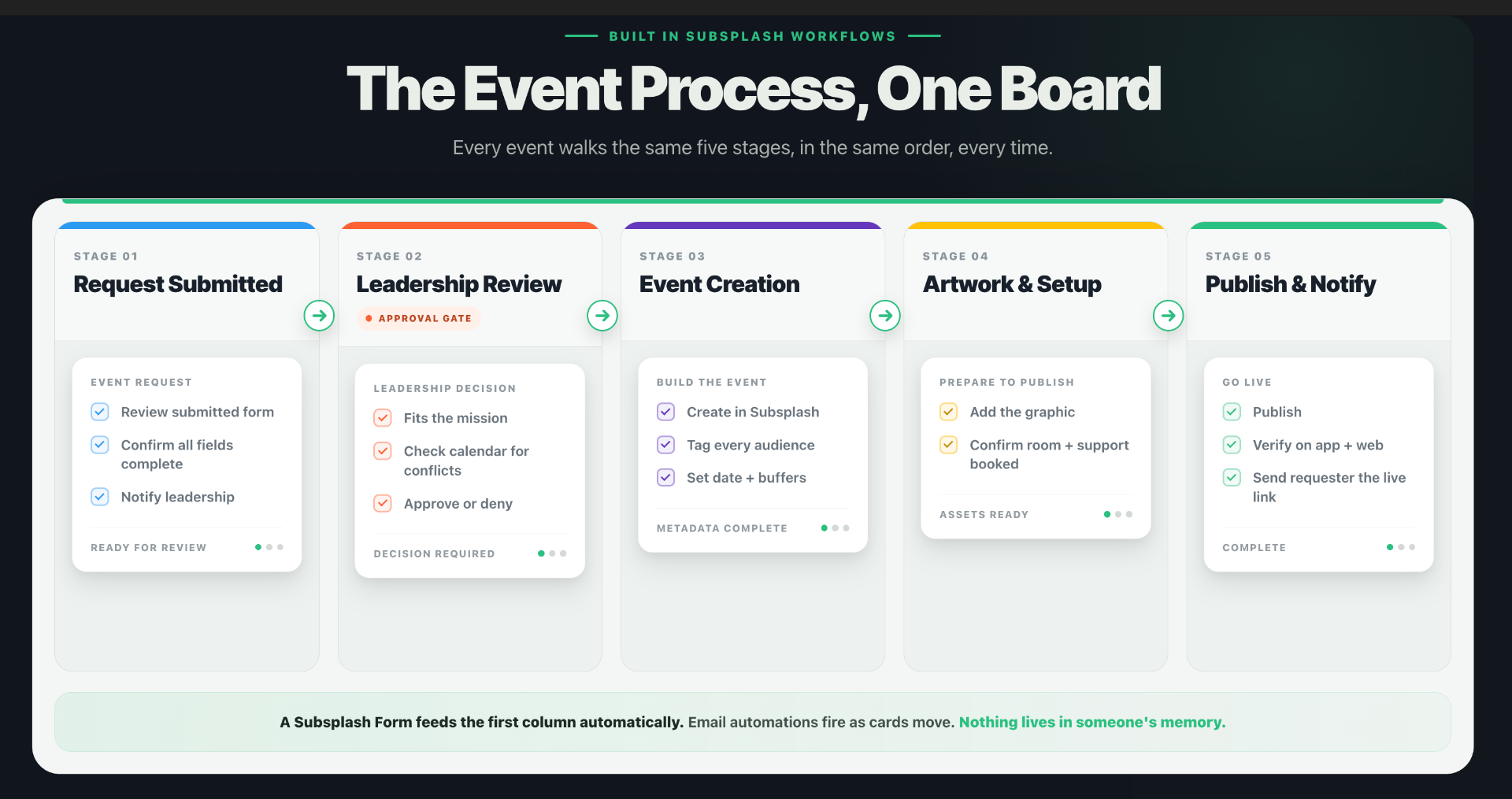
Here is where Subsplash Workflows takes over. Workflows uses a simple board of columns, and each column is a stage in your process. A card moves left to right across the board as the event moves through the steps. If you have ever used a visual task board, this will feel familiar immediately.
For an event process, the board has five columns:
Request Submitted.
The event enters here. The staff member reviews the submitted form, confirms every required field is filled in, and the right people are notified that a new request has come in.
Leadership Review.
This is the approval gate. Leadership confirms the event fits the church's mission and checks the calendar for conflicts. They approve or deny, and if they deny it, the requester gets an explanation. Nothing moves forward without passing through this gate.
Event Creation.
Once approved, an admin creates the event in Subsplash with all the details from the request form. This is where the audience tags get applied, the date and time and setup buffers get set, and the registration gets configured.
Artwork and Setup.
The admin handles the event graphic, either using art the ministry provided or creating it, and confirms the setup details are documented.
Publish and Notify.
The final step. The event gets published, syndicated to every tagged page and to the app, confirmed live on the website, and the requester gets a direct link letting them know their event is live.
Five columns. Every event walks the same five steps in the same order. You can see, at any moment, exactly where every event stands.
Step three: connect the form to the board
This is the piece that turns two separate tools into one system. In Subsplash, you connect the request form to the workflow so that when someone submits the form, a card is created automatically in the Request Submitted column, with all their answers already attached.
No one has to watch an inbox. No one has to notice a submission and manually start the process. The moment a ministry leader hits submit, the event is on the board, in the first column, waiting for review. The handoff that used to get dropped is now automatic.
Step four: build the checklist into every step
Inside each column, Workflows lets you add a checklist of the exact tasks that have to happen at that stage. This is what makes the process identical every time, no matter who is doing it or how busy the week is.
Leadership Review, for example, gets a checklist: confirm the event fits the mission, check the calendar for conflicts, reply with the decision, send an explanation if denied. Event Creation gets its own: create the event, enter all the metadata from the form, tag all the required calendars, set the buffers, add the audience and registration details.
The person working that step does not have to remember what to do. It is in front of them, checkable as they go, and visible to whoever is overseeing it. No assumptions, no follow-up texts asking whether something got done.
Step five: let the emails send themselves
This is the part that used to be manual, and it is the part that makes the whole thing accountable.
When I first built this process, every notification was a forwarded email. Approve the request, forward it to the next person. Confirm the booking, forward it again. It worked, but it depended on people remembering to forward, and the only record was a threaded inbox.
Subsplash Workflows now sends those emails automatically. You set up an email one time on a step, and the moment a card enters that step, the email goes out. The requester gets a confirmation when their event is approved. They get a direct link when it goes live. Leadership gets notified when a new request needs review. You write each email once, and every event that reaches that step gets the same message, on brand, at the right moment, whether the week is calm or slammed.
Better still, a record of every sent email appears right on the card. So you are not just automating the work, you are creating an authoritative trail. You can look at any event and see exactly what happened, what was sent, and when. That is the difference between a process that lives in someone's memory and a process you can actually be accountable to.
The point: the tool automates a process you still have to design
Subsplash Forms and Workflows are powerful. But here is the thing I want you to hear, because it is the whole reason this works.
The tool does not design your process. You do.
If you turn on Workflows and start dragging cards around without first deciding what your event process actually is, who approves, in what order, what gets checked at each gate, you have just automated your chaos. It will move faster, but it will still be a mess. The value was never the board. The value is the clear thinking underneath it: the decision about what has to happen, in what order, with which gates. The board just makes that thinking run automatically, every time, forever.
That is why I mapped the process by hand years before the tool existed. The process is the architecture. The tool is what lets you finally build it right.
Yesterday's post gave you the calendar, the what and the when. This one gives you the engine that runs it. Together they turn church communications from a weekly scramble into a system: planned a season ahead, and executed the same way every time.
Want the request form to start with?
I put together a ready-to-use event request form template, the same intake structure I build for churches, with the fields that matter and the review-gate structure already laid out. Drop it into Subsplash Forms, connect it to a Workflow, and you have the front door of this whole system in place. Fill out the form below and I will send it right over.
Want it built for you?
Designing the process and wiring it into Subsplash Forms and Workflows correctly, so the form feeds the board, the checklists are right, the emails fire when they should, and the whole thing actually runs, is the part most churches never quite finish on their own. That is what I do. I am an independent Subsplash architect. I help churches design the process first, then build it into the tools so it runs itself and keeps running. If your event planning feels like a scramble every week, or you have Subsplash but are not using Workflows to its full potential, let's talk about building the system that fixes it for good.
About Reed Verdesoto
I'm Reed Verdesoto, an independent Subsplash architect. I've built custom apps, websites, and communication systems for 500+ churches, ministries, and organizations, and I help teams turn a scattered digital presence into one that actually works and keeps working.
If something on your setup feels broken, disconnected, or harder than it should be, reach out. I'd rather have a real conversation about what you're dealing with than sell you a package.
Get in touchOriginally published on reedverde.com